
Coding is great, until the internet goes down. Like I said in a previous post, I felt like I lost my “coding brain” when I couldn’t reach my online AI assistant. It was a scary feeling of addiction! But I found a way to be independent.
Today, I show you how to set up your own completely offline AI assistant using Ollama, the Qwen2.5-Coder:7b model, and the Code Intelligence plugin for Eclipse. No internet, no subscription, just you and your code.
Why Qwen2.5-Coder:7b?
I tried many local models. Some are too big and make my laptop heat like a toaster. Some are too small and give “stupid” code. Qwen2.5-Coder:7b is the “sweet spot.” It is optimized for programming and fits perfectly in 8GB or 16GB of RAM. It understands Java, Python, and C++ very well—perfect for us Eclipse users.
Step 1: Install Ollama (The Engine)
First, you need the engine that runs the AI on your machine.
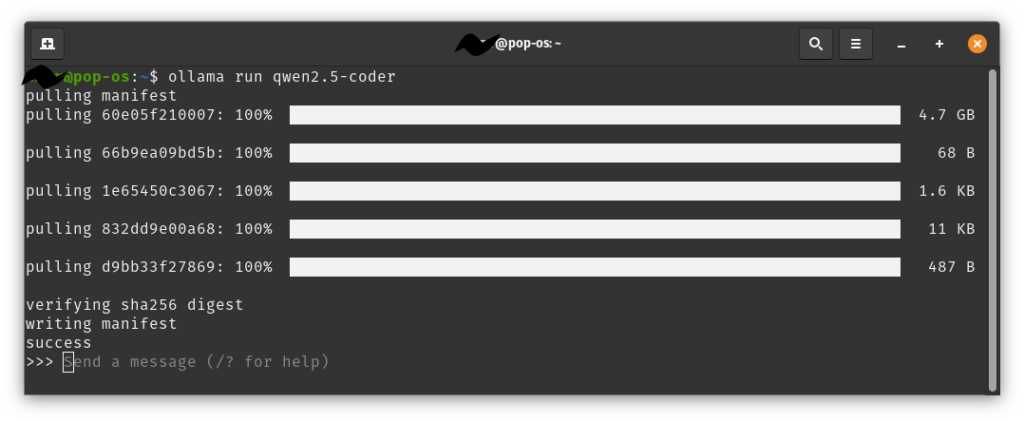
- Go to ollama.com and download the version for your OS (Windows, Mac, or Linux).
- Install it like any other program.
- Open your terminal (or Command Prompt) and type this command to download the model:Bash
ollama pull qwen2.5-coder:7bWait for it to finish. It is about 4.7GB.
Step 2: Install Code Intelligence in Eclipse
Now we need to connect Eclipse to Ollama. We use the Code Intelligence plugin (created by Carsten Habicht).
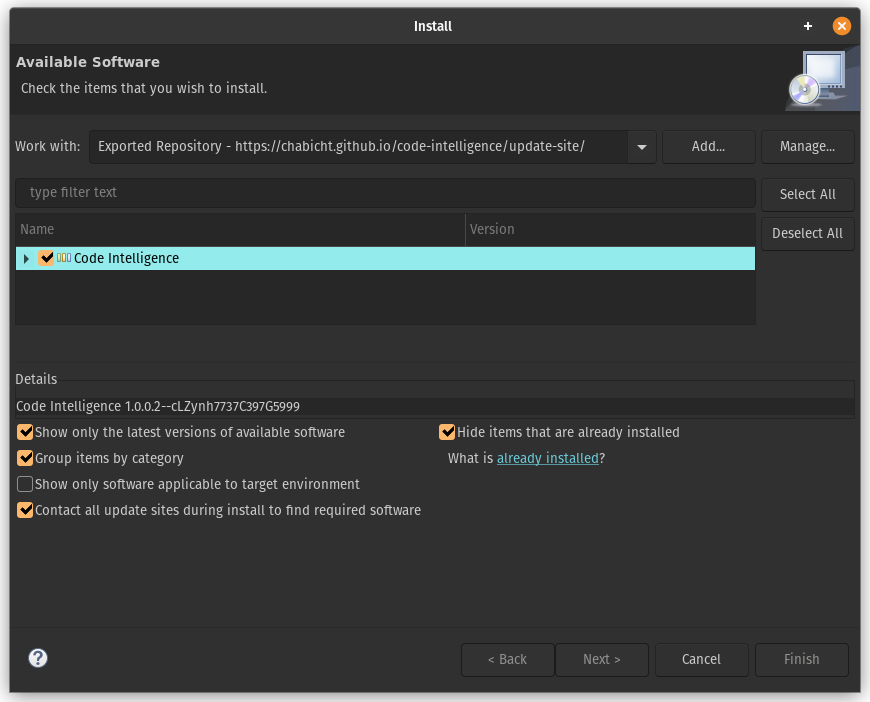
- Open Eclipse IDE.
- Go to Help -> Install New Software…
- Click Add… and enter these details:
- Name: Code Intelligence
- Location:
https://chabicht.github.io/code-intelligence/update-site/
- Select the plugin from the list, click Next, accept the license, and Finish.
- Restart Eclipse when it asks.
Step 3: Configure the Local Connection
Now we tell Eclipse to talk to your local AI instead of the cloud.
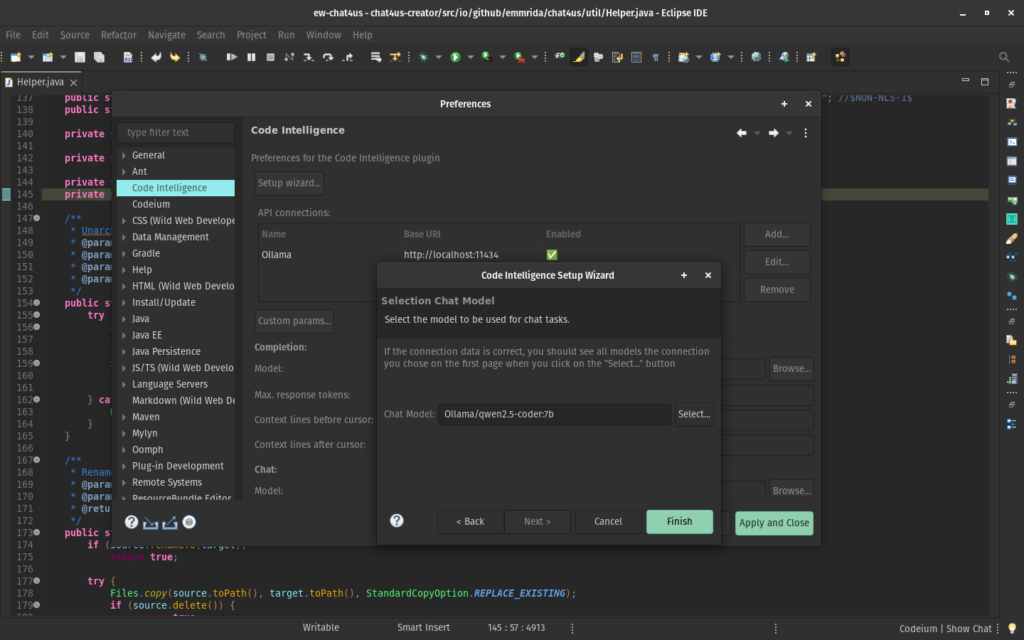
- Go to Window -> Preferences (on Mac: Eclipse -> Settings).
- Find Code Intelligence in the left menu.
- Click on Setup wizard…
- Select Ollama from the Provider list, click Test connection then Next.
- Select the Completion model or type Ollama/qwen2.5-coder:7b then click Next.
- Select the Chat Model or type Ollama/qwen2.5-coder:7b then click Finish.
- Click Apply and Close.
Step 4: How to Use It
You are now ready! Here is how to use your new “offline brain”:
- Auto-Complete: Just start typing. When you want a suggestion, press
Ctrl+Space(or your default content assist shortcut). You will see suggestions from Qwen. - The Chat: Go to Window -> Show View -> Other… and search for Code Intelligence Chat. Now you can ask “Explain this code” or “Write a JUnit test for this” without any internet connection.
- Context: If you select code in your editor and then go to the chat, the AI will know exactly what you are talking about.
Final Thoughts
Fortunately, I haven’t gone offline again, but now I have a fallback offline option I can use anytime. Using a local AI like Qwen2.5-Coder has transformed my workflow. I no longer feel vulnerable when I’m offline, it’s faster without network lag, and my code stays securely on my disk.
If you have a very old laptop, you can try the smaller qwen2.5-coder:1.5b model—it is super fast but a bit less “smart.”